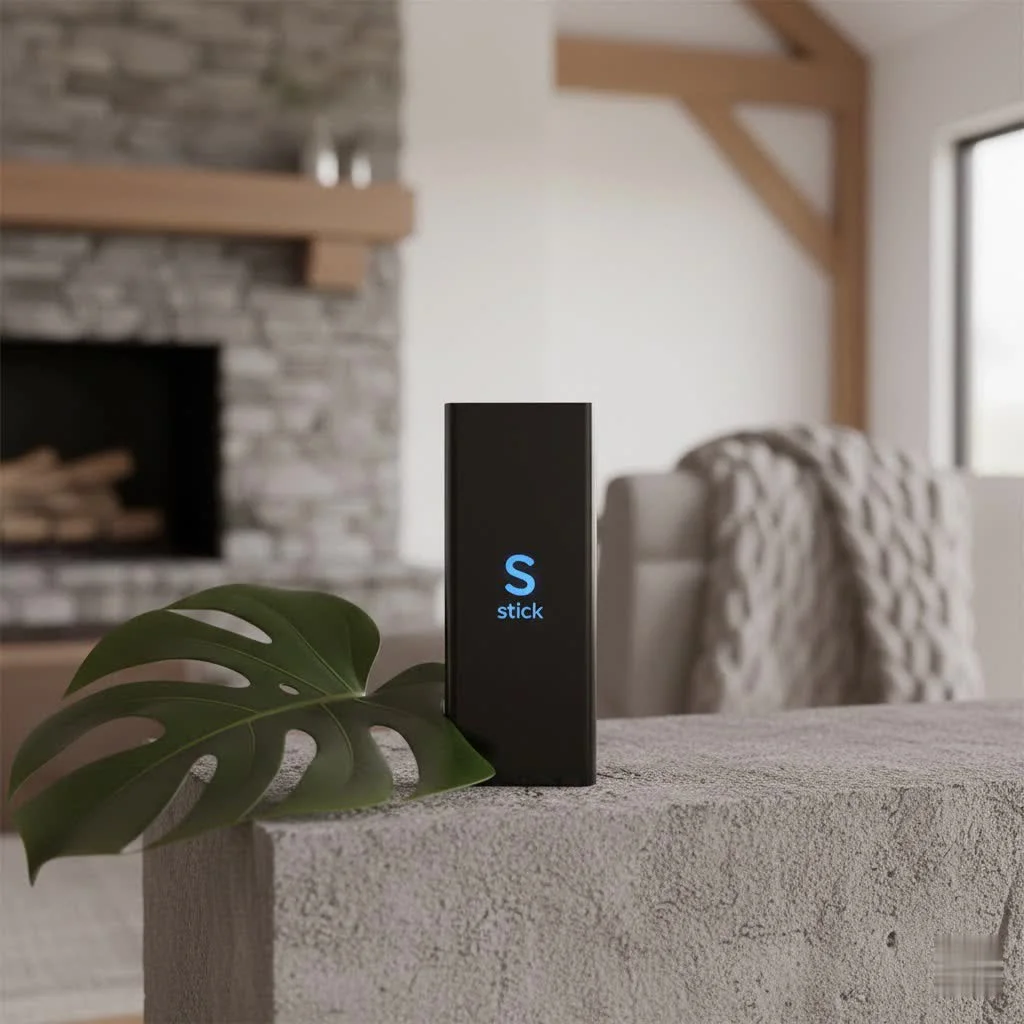
TV sticks for streaming are compact devices that plug into your TV’s HDMI port, transforming any television into a smart entertainment hub. These devices, such as the Roku Streaming Stick 4K or Amazon Fire TV Stick 4K Max, use your home’s Wi-Fi to access online streaming services like Netflix and Disney+, making a vast universe of digital content readily available.
What Exactly Are TV Sticks for Streaming?
At its core, a TV stick for streaming is a small device, typically resembling a USB flash drive or a compact dongle, that plugs directly into your television’s HDMI port. Once connected and powered, it uses your home’s Wi-Fi network to access the internet, allowing you to stream content from a many online services. Think of it as a miniature computer dedicated solely to bringing internet-based entertainment to your big screen. These devices come pre-loaded with an operating system and access to app stores, letting you download and enjoy all your favorite streaming platforms, from Netflix and Disney+ to YouTube and Spotify.
Popular TV Sticks for Streaming: A Head-to-Head Comparison
The market is rich with options, each offering unique features and catering to different user preferences. Here’s a look at the leading contenders in the streaming stick arena:
-
Roku Streaming Sticks: Renowned for their incredibly user-friendly interface, Roku devices are a fantastic choice for beginners and experienced streamers alike. Roku offers a wide range of models, from the budget-friendly Roku Express to the powerful Roku Streaming Stick 4K, and the feature-rich Roku Ultra. Their platform boasts an extensive app selection, often being among the first to support new streaming services. Many Roku devices also feature voice control, allowing you to search for content and launch apps with simple commands. The Roku Streaming Stick 4K, for instance, offers brilliant 4K picture and vivid HDR color, with long-range Wi-Fi for reliable streaming even in tricky spots.
-
Amazon Fire TV Sticks: Amazon’s Fire TV Sticks are deeply integrated with the Alexa ecosystem, making them a natural fit for Amazon Prime members and smart home enthusiasts. Models like the Fire TV Stick 4K Max deliver excellent performance, supporting Wi-Fi 6E for super-fast wireless connections and broad codec support, including Dolby Vision and HDR10+. With Alexa Voice Remote, you can easily search for content, control playback, and even manage compatible smart home devices. Amazon frequently updates its Fire TV lineup, sometimes introducing new operating systems like Vega OS on newer models, which aims for leaner performance.
-
Google Chromecast with Google TV: Google’s latest iteration of Chromecast moves beyond simple casting. The Chromecast with Google TV offers a full-fledged smart TV experience with a remote control and a personalized interface powered by Google TV. This device is a dream for Android users, seamlessly integrating with Google Assistant for voice commands and offering excellent casting capabilities from your phone or tablet. It supports 4K HDR at up to 60fps, providing a slick interface and impressive streaming quality.
-
Apple TV 4K: While not strictly a “stick” (it’s a small box), the Apple TV 4K offers a premium streaming experience, particularly for those deeply invested in the Apple ecosystem. It delivers superior picture and sound quality, with robust integration with Apple services like Apple Arcade and Apple Fitness+. It can also serve as a HomeKit hub for your smart home devices. The Apple TV 4K is known for its powerful processor, ensuring smooth navigation and gaming performance.
-
NVIDIA SHIELD TV: This device often appeals to power users and gamers, going beyond basic streaming. While pricier, the NVIDIA SHIELD TV offers exceptional performance, AI upscaling, and robust media server capabilities, making it ideal for those who demand the absolute best in home entertainment and local media playback.
Key Features to Consider When Choosing Your Streaming Stick
|
Our Picks for the Best Streaming Stick in 2026
As an Amazon Associate I earn from qualifying purchases.
|
||
| Num | Product | Action |
|---|---|---|
| 1 | Roku Express 4K+ - Roku Streaming Device 4K/HDR with Voice Remote, Free & Live TV |

|
| 2 | ONN Android TV 2K FHD Streaming Stick with Remote Control & Power Adapter WiFi HDMI Chromecast Built-in |
|
| 3 | 4K HDR Smart TV Stick, Ultra-Portable Android 12 Media Player, 2GB RAM 16GB ROM H313 Quad-Core, Dual-Band 5G WiFi & Voice Remote for Home Theaters and Smart TV Upgrades |
|
| 4 | Roku Ultra - Ultimate Streaming Player - 4K Streaming Device for TV with HDR10+, Dolby Vision & Atmos - Bluetooth & Wi-Fi 6- Rechargeable Voice Remote Pro with Backlit Buttons - Free & Live TV |
|
| 5 | Roku Streaming Stick HD 2025 — HD Streaming Device for TV with Roku Voice Remote, Free & Live TV |
|
| 6 | GREVA Android TV Stick 4K Ultra HD Streaming Device, 2025 Latest Android 14.0 TV Stick with Voice Assistant Remote Control, RK3518 2GB 16GB 2.4G/5G WiFi6 BT 5.0 HDR Streaming Media Player for Smart TV |
|
| 7 | Google TV Streamer 4K - Fast Streaming Entertainment on Your TV with Voice Search Remote - Watch Movies, Shows, Live TV, and Netflix in 4K HDR - Smart Home Control - 32 GB of Storage - Porcelain |
|
| 8 | Roku Streaming Stick Plus 2025 - 4K & HDR Roku Streaming Device for TV with Voice Remote - Free & Live TV |
|
| 9 | Roku Streaming Stick 4K - HDR & Dolby Vision Roku Streaming Device for TV with Voice Remote & Long-Range Wi-Fi - Free & Live TV |
|
| 10 | 4K HDR Smart TV Stick, Ultra-Portable Android 11 Media Player, Dual-Band 5G WiFi & Voice Remote 2GB RAM 16GB ROM H313 Quad-Core for Home Theaters and Smart TV Upgrades |
|
Selecting the right streaming stick can feel overwhelming, but focusing on a few key features will help narrow down your options:
- Resolution & HDR: For crystal-clear visuals, look for devices that support 4K Ultra HD. If your TV also supports High Dynamic Range (HDR), ensure your streaming stick can handle formats like HDR10, HDR10+, and Dolby Vision for vibrant colors and enhanced contrast.
- Connectivity: Most streaming sticks rely on Wi-Fi. Newer models offer Wi-Fi 6 or even Wi-Fi 6E for faster, more stable connections, especially in busy networks. If you prefer a wired connection for ultimate reliability, some advanced models or adapters offer an Ethernet port. Bluetooth is also handy for connecting headphones or game controllers.
- Voice Control: Almost all modern streaming sticks come with voice remote capabilities. Whether it’s Alexa, Google Assistant, or Siri, voice control streamlines searching for content, launching apps, and even controlling your smart home devices.
- App Support: Ensure the device supports all your essential streaming services. While major platforms like Netflix, Disney+, and Max are universally available, some niche apps or local services might vary by platform.
- Operating System: Each brand has its own operating system (Roku OS, Fire OS, Google TV, tvOS). Test them out if possible, as user interface and navigation can significantly impact your experience.
- Performance: A faster processor and more RAM translate to snappier navigation, quicker app launches, and smoother streaming. This is especially noticeable with higher resolution content or when switching between apps frequently.
- Ecosystem Integration: If you’re already invested in a smart home ecosystem (Apple HomeKit, Amazon Alexa, Google Home), choosing a streaming stick that integrates seamlessly will enhance your overall experience.
According to Maria Sanchez, a senior software engineer specializing in streaming devices at Tsauk.com, “The ideal streaming stick isn’t just about raw power; it’s about seamless integration into your daily life. Consider how it will interact with your existing smart devices and what content ecosystems you frequently use to truly maximize its value.”
Step-by-Step Guide: Setting Up Your TV Stick for Streaming
Getting your new streaming stick up and running is typically a straightforward process. Here’s how to do it:
-
Unboxing and Connecting: Start by carefully unboxing your new streaming stick. You’ll usually find the stick itself, a remote control, a power adapter, and a USB cable. Locate an available HDMI port on your TV and plug in your streaming stick. If space is tight, many sticks come with an HDMI extender. Next, connect the USB power cable to the stick and then to the power adapter. Plug the adapter into a wall outlet. While some TVs have USB ports that can power the stick, a wall outlet is generally recommended for a more stable power supply and to prevent potential performance issues.
-
Power On and Input Selection: Turn on your TV and use your TV remote to select the correct HDMI input that your streaming stick is plugged into (e.g., HDMI 1, HDMI 2). You should see the streaming stick’s logo appear on the screen.
-
Remote Pairing: Most streaming stick remotes will automatically pair. If not, follow the on-screen instructions, which typically involve pressing and holding a specific button (often the Home button) for a few seconds.
-
Network Connection: Your streaming stick will prompt you to connect to your Wi-Fi network. Select your network name from the list and enter your Wi-Fi password.
-
Account Setup & Updates: You’ll then be asked to sign in to an existing account (Amazon, Roku, Google, or Apple) or create a new one. Follow the on-screen prompts. The device will likely check for and install any available software updates. This is crucial for performance and security.
-
Download Apps: Once the initial setup is complete, you’ll land on the home screen. Navigate to the app store or channel store and download your favorite streaming services. You’ll need to log in to each service with your existing subscription credentials.
Pro Tips for Optimizing Performance and Troubleshooting Common Issues
Even the best tv sticks for streaming can occasionally encounter hiccups. Here’s how to keep yours running smoothly and tackle common problems:
Optimizing Performance:
- Dedicated Power Source: Always use the provided power adapter and plug your streaming stick into a wall outlet. Relying on your TV’s USB port might lead to insufficient power, causing sluggish performance or unexpected reboots.
- Strong Wi-Fi Signal: A stable internet connection is paramount. Place your Wi-Fi router in a central location, minimize obstructions, and consider upgrading to a Wi-Fi 6 or 6E router if your streaming stick supports it. For critical connections, an Ethernet adapter (if available for your model) can offer maximum reliability.
- Clear Cache & Storage Management: Over time, apps accumulate cache data, which can slow down your device. Regularly go into your device settings, navigate to “Applications” or “Apps,” and clear the cache for frequently used apps. Also, uninstall any apps you no longer use to free up valuable storage space.
- Keep Software Updated: Enable automatic updates or manually check for them regularly. Software updates often include performance improvements and bug fixes.
- Use an HDMI Extender: If your streaming stick is crammed behind the TV, it might overheat. Using a short HDMI extender can create better airflow, preventing thermal throttling.
Troubleshooting Common Issues:
- “No Signal” or Black Screen:
- Check HDMI Connection: Ensure the streaming stick is firmly plugged into the HDMI port.
- Correct TV Input: Verify your TV is set to the correct HDMI input source. Cycle through inputs using your TV remote.
- Try Another Port/Cable: Plug the stick into a different HDMI port or try a different HDMI cable.
- Power Cycle: Unplug both your TV and streaming stick from power for 60 seconds, then plug them back in.
- Wi-Fi Connectivity Issues:
- Verify Password: Double-check that you’ve entered the correct Wi-Fi password.
- Restart Network Gear: Unplug your Wi-Fi router and modem for a minute, then plug them back in.
- Move Closer: If possible, move your streaming stick closer to your router.
- Forget and Reconnect: In your streaming stick’s network settings, “forget” your Wi-Fi network and then try connecting again.
- App Crashing or Sluggish Performance:
- Clear Cache: As mentioned above, clearing the app’s cache is often the first step.
- Free Up Storage: Uninstall unused apps.
- Reinstall App: If an app consistently crashes, try uninstalling and reinstalling it.
- Factory Reset: As a last resort, performing a factory reset will wipe all data and settings, often resolving deeper software issues. Make sure to back up any crucial information if possible, as this will return the device to its out-of-the-box state.
- Audio/Video Playback Problems:
- Check HDMI: A loose HDMI connection can sometimes cause A/V issues.
- Device Settings: Verify display and audio settings on your streaming stick match your TV’s capabilities (e.g., 4K resolution, Dolby Atmos).
- Relaunch App: Simply closing and reopening the streaming app can resolve temporary glitches.
- Overheating:
- Ventilation: Ensure your streaming stick has adequate airflow around it. Avoid placing it in enclosed cabinets.
- HDMI Extender: Using an extender can help the stick dissipate heat more effectively by moving it away from the TV’s warm components.
The Best Streaming Apps and Services for Your TV Stick
The true power of tv sticks for streaming lies in the vast ecosystem of apps available. Beyond the usual suspects, here are categories of apps you’ll want to explore:
- Major Paid Streaming Services: These are the titans of streaming: Netflix, Max, Disney+, Hulu, Prime Video, YouTube TV, Paramount+, Peacock, and Apple TV+. Each offers a unique library of original content, movies, and TV shows, often requiring a monthly subscription.
- Popular Free Streaming Services: Don’t want to pay for every service? Apps like Tubi, Pluto TV, Xumo Play, and Crackle offer thousands of free movies, TV shows, and even live channels, supported by ads. Kanopy is another excellent option, offering critically acclaimed films and documentaries for free with a participating library card.
- Media Server Apps: For those with extensive personal media libraries, apps like Plex and Kodi turn your streaming stick into a home media hub. They allow you to organize and stream your own movies, TV shows, music, and photos from a server on your home network.
- Niche & International Content: Beyond the mainstream, you’ll find specialized apps for specific genres or regions. For example, Shudder TV caters to horror fans, while Rakuten Viki offers a vast catalog of Korean, Chinese, and Japanese dramas. Curiosity Stream provides educational documentaries.
Frequently Asked Questions (FAQ)
Q: Do I need a smart TV to use a streaming stick?A: No, you absolutely do not need a smart TV. A streaming stick can turn any TV with an HDMI port into a smart TV, providing access to all your favorite streaming apps and services. It’s a cost-effective way to upgrade an older television.
Q: Can I use a tv stick for streaming if I don’t have Wi-Fi?A: Most streaming sticks primarily rely on a Wi-Fi connection for internet access. Some higher-end models or optional adapters offer an Ethernet port for a wired connection, but a stable internet connection (wired or wireless) is essential for streaming content.
Q: What’s the difference between a streaming stick and a smart TV’s built-in apps?A: While smart TVs have built-in apps, dedicated streaming sticks often offer a more streamlined, faster, and regularly updated experience. They can have more powerful processors, access to a wider range of apps, and a more consistent user interface across different TV brands. Many users find external streaming sticks superior to their TV’s native smart features.
Q: Are all streaming sticks 4K compatible?A: No, not all streaming sticks support 4K resolution. Many entry-level models are designed for 1080p HD streaming. If you have a 4K TV, look for models specifically labeled “4K,” “4K HDR,” or “4K Max” to ensure you get the best picture quality.
Q: How do I control my streaming stick?A: You primarily control your streaming stick using the included remote control, which often features voice command capabilities. Most major streaming stick brands (Roku, Amazon, Google, Apple) offer companion mobile apps that can turn your smartphone into a remote, complete with virtual keyboards and voice search.
Q: Is it legal to use third-party apps on my streaming stick?A: While many legitimate third-party apps enhance the streaming experience (like media servers or niche services), some “dodgy” streaming sticks or apps are preloaded with illegal software or links to pirated content. Using these is illegal and can expose your device to security risks. Always download apps from official app stores or trusted, verified sources.
improve your Entertainment with TV Sticks for Streaming
TV sticks for streaming are indispensable tools for modern home entertainment. They offer an unparalleled combination of convenience, versatility, and access to a seemingly endless library of content, all within a compact and affordable package. Whether you’re upgrading an older TV, seeking a more robust smart TV experience, or simply want to consolidate your entertainment options, there’s a streaming stick out there perfect for you. By understanding the different types, key features, and how to optimize and troubleshoot them, you’re well on your way to transforming your living room into a personalized entertainment paradise. Embrace the future of TV and dive into the world of streaming – your perfect cinematic escape awaits!
Setting Up Your TV Stick for Streaming
This guide provides step-by-step instructions to get your new streaming stick up and running, from unboxing to downloading your favorite apps.
Carefully unbox your streaming stick, remote, power adapter, and USB cable. Plug the stick into an available HDMI port on your TV, using an extender if needed. Connect the USB power cable to the stick and then to the power adapter, plugging it into a wall outlet for stable power.
Turn on your TV and use its remote to select the correct HDMI input where your streaming stick is connected. You should then see the streaming stick's logo appear on the screen, indicating a successful connection.
Most remotes pair automatically; if not, follow on-screen instructions, often by holding the Home button. Your device will then prompt you to connect to your Wi-Fi network; select your network name and enter the password.
Sign in to an existing account (Amazon, Roku, Google, Apple) or create a new one as prompted. The device will likely check for and install any available software updates, which are crucial for optimal performance and security.
Once the initial setup is complete, navigate to the app store or channel store from the home screen. Download your preferred streaming services and log in to each with your existing subscription credentials to start watching.
Get our weekly buyer guide
Practical specs, not advice. Unsubscribe anytime.
I finally upgraded to the Roku Streaming Stick 4K after using an older model for years, and the difference is incredible. The picture quality is super crisp, and I love how fast it loads all my apps like Netflix and Hulu. Setup was a breeze, just plugged it into the HDMI port and connected to my Wi-Fi. Definitely worth it for anyone looking to make their TV smarter without breaking the bank.
This guide really helped me understand what a TV stick actually does. I always thought I needed a whole new smart TV, but my old plasma works perfectly with the new streaming stick. It’s amazing how a small device that just plugs into the HDMI port can open up so many streaming options. Now I can watch all my favorite shows on YouTube TV without any issues.
I got a generic TV stick for streaming that was on sale, hoping to save some money. While it does the job for basic streaming, I’ve noticed it struggles a bit with buffering on certain apps, especially during peak hours. It’s fine for casual viewing, but if you’re a heavy streamer, I’d probably recommend investing in one of the more well-known brands mentioned, like a Roku or Fire Stick, for a smoother experience.
The Amazon Fire TV Stick 4K Max is a solid choice, especially if you’re already in the Amazon ecosystem. I appreciate the voice control with Alexa, which makes searching for shows really convenient. My only minor gripe is that sometimes the interface feels a little cluttered with Amazon’s own content, but it’s easy enough to navigate once you get used to it. Great for streaming Disney+ and Prime Video.