The Amazon Fire Stick HD is a compact media streaming device that plugs into your TV’s HDMI port, delivering 1080p Full HD resolution content from various streaming services. It is an economical yet powerful upgrade for 1080p televisions, offering access to thousands of apps and an Alexa Voice Remote for easy control. This guide covers everything from setup to advanced tips and troubleshooting for seamless streaming.
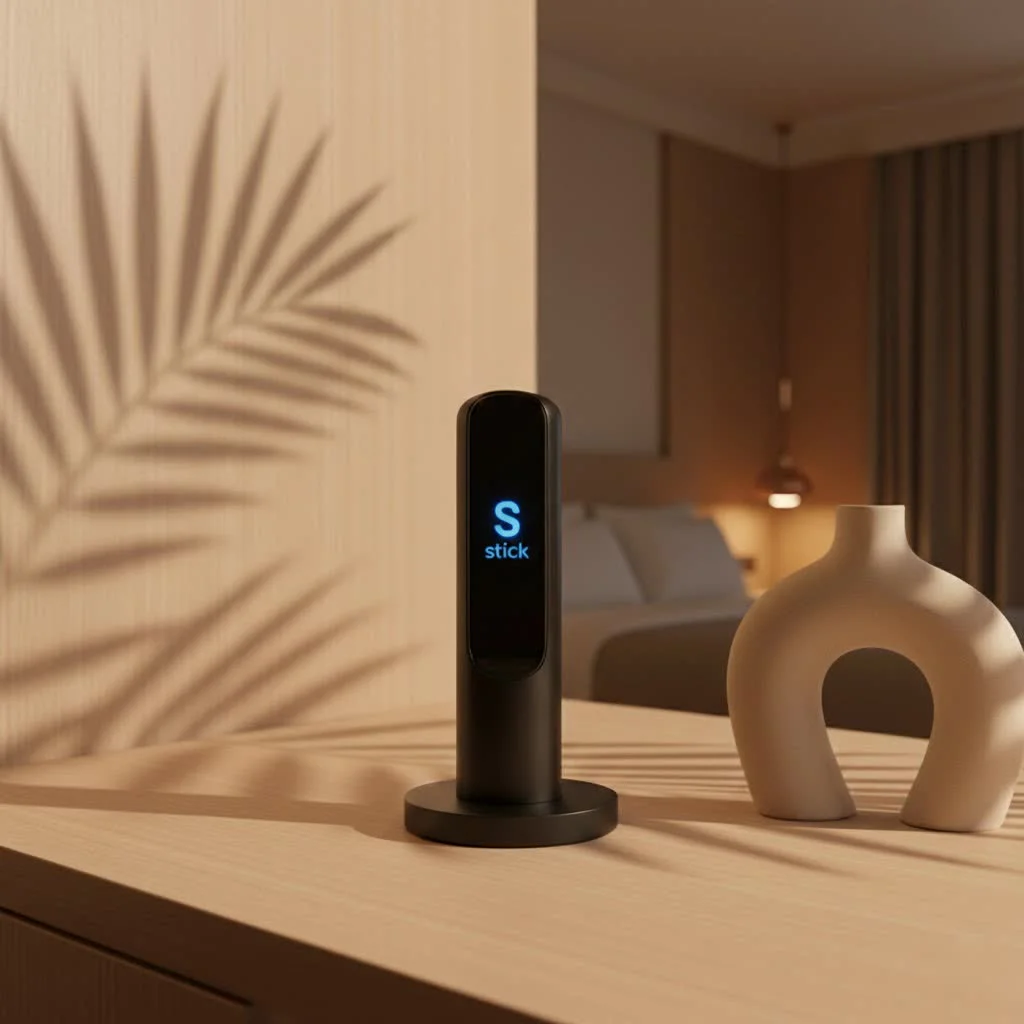
What Exactly is the Amazon Fire Stick HD?
At its core, the Amazon Fire Stick HD is a compact media streaming device that plugs directly into your TV’s HDMI port. Its primary mission? To deliver a world of entertainment directly to your screen in crisp 1080p Full HD resolution. Think of it as a bridge, connecting your television to the internet and unlocking access to a vast ecosystem of streaming services, apps, and games. This particular model, often seen as a replacement for the older Fire TV Stick Lite and the standard Fire TV Stick, is specifically tailored for those with 1080p televisions, making it an incredibly economical yet powerful upgrade for your home entertainment setup. While it plays nicely with 4K TVs, that it will stream content at its native 1080p, so it’s really the sweet spot for maximizing your existing HD display.
Unpacking the Features of Your Amazon Fire Stick HD
The Amazon Fire Stick HD comes packed with features designed to enhance your viewing experience. Let’s break down what makes this streaming stick a popular choice.
Full HD (1080p) Clarity with Enhanced Audio
While it’s an HD device, the Amazon Fire Stick HD doesn’t skimp on quality. It delivers a vibrant 1080p Full HD picture, which is perfect for most televisions. What’s more, it supports HDR10 and HDR10+ for improved contrast and color, bringing out richer detail in compatible content. For an immersive audio experience, you’ll be pleased to know it also supports Dolby Atmos, allowing for captivating soundscapes that can truly pull you into the action, provided you have a compatible sound system.
The Power of Voice with Alexa
One of the standout features is the included Alexa Voice Remote. This isn’t just a regular remote; it’s your command center. With a press of the Alexa button, you can search for movies, launch apps, control playback (pause, rewind, fast-forward), and even manage smart home devices, all with your voice. No more tedious typing with an on-screen keyboard! Plus, this updated remote now includes dedicated power, volume, and mute buttons for your TV, meaning you can often ditch your TV’s original remote entirely. It’s a small change that makes a huge difference in convenience.
An Ocean of Entertainment
|
Our Picks for the Best Streaming Stick in 2026
As an Amazon Associate I earn from qualifying purchases.
|
||
| Num | Product | Action |
|---|---|---|
| 1 | 4K HDR Smart TV Stick, Ultra-Portable Android 11 Media Player, Dual-Band 5G WiFi & Voice Remote 2GB RAM 16GB ROM H313 Quad-Core for Home Theaters and Smart TV Upgrades |

|
| 2 | Roku Ultra - Ultimate Streaming Player - 4K Streaming Device for TV with HDR10+, Dolby Vision & Atmos - Bluetooth & Wi-Fi 6- Rechargeable Voice Remote Pro with Backlit Buttons - Free & Live TV |
|
| 3 | GREVA Android TV Stick 4K Ultra HD Streaming Device, 2025 Latest Android 14.0 TV Stick with Voice Assistant Remote Control, RK3518 2GB 16GB 2.4G/5G WiFi6 BT 5.0 HDR Streaming Media Player for Smart TV |
|
| 4 | Roku Streaming Stick HD 2025 — HD Streaming Device for TV with Roku Voice Remote, Free & Live TV |
|
| 5 | Google TV Streamer 4K - Fast Streaming Entertainment on Your TV with Voice Search Remote - Watch Movies, Shows, Live TV, and Netflix in 4K HDR - Smart Home Control - 32 GB of Storage - Porcelain |
|
| 6 | ONN Android TV 2K FHD Streaming Stick with Remote Control & Power Adapter WiFi HDMI Chromecast Built-in |
|
| 7 | 4K HDR Smart TV Stick, Ultra-Portable Android 12 Media Player, 2GB RAM 16GB ROM H313 Quad-Core, Dual-Band 5G WiFi & Voice Remote for Home Theaters and Smart TV Upgrades |
|
| 8 | Roku Streaming Stick 4K - HDR & Dolby Vision Roku Streaming Device for TV with Voice Remote & Long-Range Wi-Fi - Free & Live TV |
|
| 9 | Roku Express 4K+ - Roku Streaming Device 4K/HDR with Voice Remote, Free & Live TV |
|
| 10 | Roku Streaming Stick Plus 2025 - 4K & HDR Roku Streaming Device for TV with Voice Remote - Free & Live TV |
|
The Amazon Fire Stick HD grants you access to an unparalleled library of content. From popular streaming giants like Netflix, Amazon Prime Video, Disney+, Hulu, and YouTube, to niche services, live TV platforms like Sling TV and YouTube TV, and a wealth of music apps such as Spotify and Amazon Music, there’s truly something for everyone. The Fire TV operating system is home to tens of thousands of apps, ensuring you’ll never run out of things to watch, listen to, or even play.
Compact Design, Big Impact
The design of the Fire Stick HD is brilliantly simple and discreet. It’s a small, dongle-like device that plugs directly into an available HDMI port on your television. This means minimal clutter behind your TV, and its portability makes it an excellent companion for travel, allowing you to enjoy your streaming subscriptions wherever you go, as long as there’s Wi-Fi.
Fire OS: The Brains Behind the Brawn
Running on Amazon’s Fire OS, which is based on Android, the Fire Stick HD offers a user-friendly and intuitive interface. It’s designed for easy navigation, allowing you to browse content, search, and manage your apps effortlessly. While some reviewers note occasional slight choppiness compared to the more powerful 4K variants due to its 1GB of RAM and Wi-Fi 5, for day-to-day streaming, the software generally runs smoothly and responsively.
Getting Started: A Step-by-Step Amazon Fire Stick HD Setup Guide
Setting up your Amazon Fire Stick HD is a breeze, even if you’re not particularly tech-savvy. Here’s how to get your streaming powerhouse up and running in minutes.
What’s in the Box?
Before you begin, ensure you have everything:
- The Amazon Fire Stick HD device
- Alexa Voice Remote
- Power adapter
- Micro-USB cable
- HDMI extender (useful for tight spaces)
- Two AAA batteries for the remote
Connecting Your Fire Stick HD
First, find an available HDMI port on your TV. If space is tight, use the included HDMI extender. Plug the Fire Stick HD directly into the HDMI port. Next, connect the micro-USB cable to the Fire Stick and then to the power adapter, plugging it into a wall outlet. While some TVs offer USB ports for power, using the dedicated power adapter is always recommended for optimal performance and stability.
Bringing Your Remote to Life
Insert the two AAA batteries into your Alexa Voice Remote. The remote should automatically pair with your Fire Stick HD. If it doesn’t, simply press and hold the Home button for about 10 seconds until the pairing is complete.
First Boot-Up and Network Connection
Turn on your TV and select the correct HDMI input where your Fire Stick HD is connected. You’ll see the Amazon logo, followed by a language selection screen. Choose your preferred language. The Fire Stick will then scan for available Wi-Fi networks. Select your network and enter your password.
Amazon Account & Personalization
Once connected to Wi-Fi, you’ll be prompted to log in with your Amazon account. If you don’t have one, you can create one. After logging in, you’ll get options to save your Wi-Fi password for future use and set up parental controls. Setting a PIN for purchases and content restrictions is a smart move, especially if kids use the device. The device will then offer to install popular apps, or you can choose to skip and install them later from the App Store.
Mastering Your Amazon Fire Stick HD: Tips for Optimal Performance
Even the best streaming devices can encounter hiccups. Here are some pro tips to keep your Amazon Fire Stick HD running smoothly and efficiently.
Why is my Amazon Fire Stick HD feeling sluggish?
If your Fire Stick HD feels slow or apps take time to load, it’s often due to accumulated data, background processes, or network congestion. Addressing these can significantly boost its responsiveness.
- Clear App Cache & Data: Just like your phone, apps on your Fire Stick store temporary data (cache) that can build up over time and slow things down. Go to
Settings > Applications > Manage Installed Applications, select an app, and chooseClear Cache. For persistent issues,Clear Data(which will log you out of that app) can also help. - Keep Your Software Updated: Amazon regularly releases software updates that improve performance and fix bugs. Ensure your device is running the latest version by going to
Settings > My Fire TV > About > Check for Updates. - Optimize Your Wi-Fi Connection: A strong, stable Wi-Fi signal is crucial. Ensure your Fire Stick HD is within a reasonable range of your router. If your router supports dual bands (2.4GHz and 5GHz), try connecting to the 5GHz network, as it’s generally faster and less prone to interference, even though the Fire Stick HD uses Wi-Fi 5.
- Manage Background Apps and Notifications: Unused apps can still consume resources in the background. Close or uninstall apps you don’t frequently use. Also, reduce distracting notifications by adjusting settings in
Settings > Preferences > Notification Settings. - Always Use the Included Power Adapter: While it’s tempting to power the Fire Stick HD directly from your TV’s USB port, this often doesn’t provide enough consistent power, leading to performance issues and instability. Always use the dedicated power adapter and plug it into a wall outlet for reliable operation.
Common Amazon Fire Stick HD Issues and Quick Fixes
Even with the best optimization, you might encounter an occasional snag. Here are quick solutions to some common Amazon Fire Stick HD problems.
“My Fire Stick HD remote isn’t working.”
First, check the batteries. If they’re good, try restarting your Fire Stick by unplugging it from power for 60 seconds and plugging it back in. If the issue persists, try re-pairing the remote by holding the Home button for 10 seconds. For severe cases, you might need to try a new remote or use the Fire TV app on your phone as a temporary remote.
“Why is my streaming constantly buffering?”
Buffering is usually a network issue. Check your internet speed using a speed test app on the Fire Stick or another device. If your speed is low, try restarting your router and modem. Also, ensure no other devices are hogging bandwidth. As mentioned, clearing the cache of the streaming app can also help.
“Apps are crashing or freezing.”
This often points to an app-specific issue. Try clearing the cache and data for the problematic app (Settings > Applications > Manage Installed Applications). If that doesn’t work, uninstall and then reinstall the app. Ensure your Fire Stick’s software is up to date, as outlined in the performance tips.
“No sound or video on my TV.”
First, check if your TV is on the correct HDMI input. Try a different HDMI port. Ensure all cables are securely connected. If it’s a sound-specific issue, go to Settings > Display & Sound > Audio and check the audio output settings. Sometimes a simple restart of the Fire Stick HD can resolve these display and audio glitches.
Beyond the Basics: Essential Apps and Services for Your Amazon Fire Stick HD
While the Amazon Fire Stick HD comes ready to stream, part of the fun is customizing it with your favorite apps. Here’s a rundown of essential apps and services to consider.
Top Video Streaming Services
Beyond Amazon Prime Video, the Fire Stick HD supports virtually every major streaming platform:
- Netflix: A must-have for original series and movies.
- Disney+: Home to Disney, Pixar, Marvel, Star Wars, and National Geographic.
- Hulu: Live TV, on-demand content, and network shows.
- YouTube: Endless user-generated content, music videos, and documentaries.
- Apple TV+: Award-winning original shows and movies.
- Peacock: NBCUniversal content, including live sports and current series.
Music & Audio
improve your home audio experience with dedicated music apps:
- Spotify: Access millions of songs and podcasts.
- Amazon Music: Free with Prime, or a separate subscription for extensive libraries.
- Pandora: Personalized radio stations.
Live TV & Sports
Cut the cord without missing out on live programming:
- Sling TV: Customizable live TV packages.
- YouTube TV: Live TV from major broadcast and cable networks.
- Max (formerly HBO Max), Paramount+, ESPN+: Offer live sports and premium content.
Utility & Browsing
- Silk Browser / Firefox: For general web browsing on your TV.
- File Managers: Useful for managing device storage and side-loading apps (for advanced users).
“The Amazon Fire Stick HD truly embodies the sweet spot between affordability and functionality,” notes Evelyn Reed, Senior Tech Editor at Tsauk.com. “It’s a robust streaming companion for 1080p TVs, delivering a premium entertainment experience without the premium price tag. The enhanced Alexa Voice Remote alone makes it a worthwhile upgrade for many.”
Frequently Asked Questions About the Amazon Fire Stick HD
Here are answers to some common questions about this versatile streaming device.
What resolution does the Amazon Fire Stick HD support?The Amazon Fire Stick HD primarily supports 1080p Full HD resolution. While it can connect to 4K televisions, all content will be displayed at a maximum of 1080p.
Do I need an Amazon Prime subscription to use the Fire Stick HD?No, you do not need an Amazon Prime subscription to use the Amazon Fire Stick HD. You will need a regular Amazon account to set it up and download apps, but many popular streaming services (like Netflix, YouTube, Disney+) work perfectly without Prime.
How does the Amazon Fire Stick HD compare to the 4K models?The Amazon Fire Stick HD is designed for 1080p TVs, offering good performance at a lower price. Amazon’s 4K models (like the Fire Stick 4K or 4K Max) support 4K Ultra HD resolution, often have more RAM (2GB vs. 1GB), and support faster Wi-Fi 6, leading to a smoother experience, especially on 4K TVs.
Can I control my TV’s volume with the Fire Stick HD remote?Yes, the included Alexa Voice Remote with the Amazon Fire Stick HD features dedicated volume, mute, and power buttons, allowing you to control your television directly, reducing the need for multiple remotes.
How do I reset my Amazon Fire Stick HD to factory settings?To factory reset your Fire Stick HD, go to Settings > My Fire TV > Reset to Factory Defaults. Be aware this will erase all your data and installed apps, requiring you to set up the device again from scratch.
Is the Amazon Fire Stick HD good for gaming?The Amazon Fire Stick HD can handle casual games and some lighter titles available in the Fire TV Appstore. However, for serious or graphics-intensive gaming, it’s generally not powerful enough, and a dedicated gaming console or PC would provide a much better experience.
What is the storage capacity of the Amazon Fire Stick HD?The Amazon Fire Stick HD comes with 8GB of internal storage. A portion of this is used by the operating system, leaving about 5-6GB available for apps, games, and cached content.
Conclusion
The Amazon Fire Stick HD stands as a shows affordable, high-quality streaming. It’s a fantastic device for anyone looking to bring smart TV capabilities to an older 1080p television or simply seeking a cost-effective way to access a vast library of entertainment. With its intuitive Fire OS, the powerful Alexa Voice Remote, and support for stunning Full HD visuals and immersive Dolby Atmos audio, it truly elevates your home entertainment experience.
Whether you’re setting it up for the first time, troubleshooting a minor hiccup, or simply looking to discover new apps, the Amazon Fire Stick HD offers an incredible amount of value. So go ahead, plug it in, dive into your favorite shows, and let your Amazon Fire Stick HD transform the way you watch television. Your journey to seamless streaming starts now!
Frequently Asked Questions
What resolution does the Amazon Fire Stick HD support?
The Amazon Fire Stick HD primarily supports 1080p Full HD resolution. While it can connect to 4K televisions, all content will be displayed at a maximum of 1080p, making it ideal for HD displays.
Is an Amazon Prime subscription required to use the Fire Stick HD?
No, an Amazon Prime subscription is not required to use the Amazon Fire Stick HD. You will need a regular Amazon account for setup and app downloads, but many popular streaming services like Netflix and YouTube function without Prime.
How does the Amazon Fire Stick HD compare to the 4K Fire Stick models?
The Amazon Fire Stick HD is designed for 1080p TVs, offering good performance at a lower price point. Amazon's 4K models, such as the Fire Stick 4K or 4K Max, support 4K Ultra HD resolution, typically have 2GB of RAM (compared to 1GB), and support faster Wi-Fi 6 for a smoother experience on 4K TVs.
Can the Fire Stick HD remote control my television's volume?
Yes, the included Alexa Voice Remote with the Amazon Fire Stick HD features dedicated volume, mute, and power buttons. This allows you to control your television directly, reducing the need for multiple remotes and enhancing convenience.
What is the internal storage capacity of the Amazon Fire Stick HD?
The Amazon Fire Stick HD comes with 8GB of internal storage. A portion of this capacity is used by the operating system, leaving approximately 5-6GB available for installing apps, games, and storing cached content.
How do I perform a factory reset on my Amazon Fire Stick HD?
To factory reset your Fire Stick HD, navigate to Settings > My Fire TV > Reset to Factory Defaults. This action will erase all your personal data and installed applications, requiring you to set up the device from scratch again.
Set Up Your Amazon Fire Stick HD
Follow these steps to quickly get your Amazon Fire Stick HD up and running for seamless streaming.
Locate an available HDMI port on your television and plug the Fire Stick HD directly into it. If space is limited, use the included HDMI extender. Then, connect the micro-USB cable to the Fire Stick and plug the power adapter into a wall outlet for optimal performance.
Insert the two AAA batteries into your Alexa Voice Remote. Turn on your TV and select the correct HDMI input. The remote should automatically pair; if not, press and hold the Home button for about 10 seconds until pairing is complete.
After selecting your preferred language, the Fire Stick will scan for Wi-Fi networks. Choose your network and enter the password. You will then be prompted to log in with your Amazon account or create a new one to proceed with setup and app installation.
After logging in, you can save your Wi-Fi password and set up parental controls, including a PIN for purchases. The device will offer to install popular apps, or you can skip this step and install them later from the App Store to customize your streaming experience.
Get our weekly buyer guide
Practical specs, not advice. Unsubscribe anytime.

This device is exactly what I needed for my guest room TV. It’s so compact and just plugs right into the HDMI port, which keeps things tidy. The guide mentioned it’s an economical upgrade, and I totally agree. It brings all the streaming services you could want without breaking the bank, and the picture quality is solid.
The Fire Stick HD is pretty good for the price, and it was easy to set up. I appreciate having access to so many apps. My only real complaint is that sometimes it feels a little sluggish when navigating through menus, especially after it’s been on for a while. It’s not a dealbreaker, but it can be a bit annoying when you’re trying to quickly switch between services.
I’m a huge fan of the Fire Stick HD! I was tired of my old streaming box constantly buffering, but this one handles everything seamlessly. The ability to access thousands of apps is fantastic, and I’ve even discovered some new content thanks to the easy navigation. It’s a powerful little device that really delivers on its promise of smooth streaming.
I finally upgraded to the Fire Stick HD after years of using an older smart TV, and wow, what a difference! The 1080p Full HD resolution is super crisp on my older TV, and I love how quickly it loads all my apps. The Alexa Voice Remote is a game-changer for finding shows without typing. Definitely recommend it for anyone looking to modernize their entertainment setup.